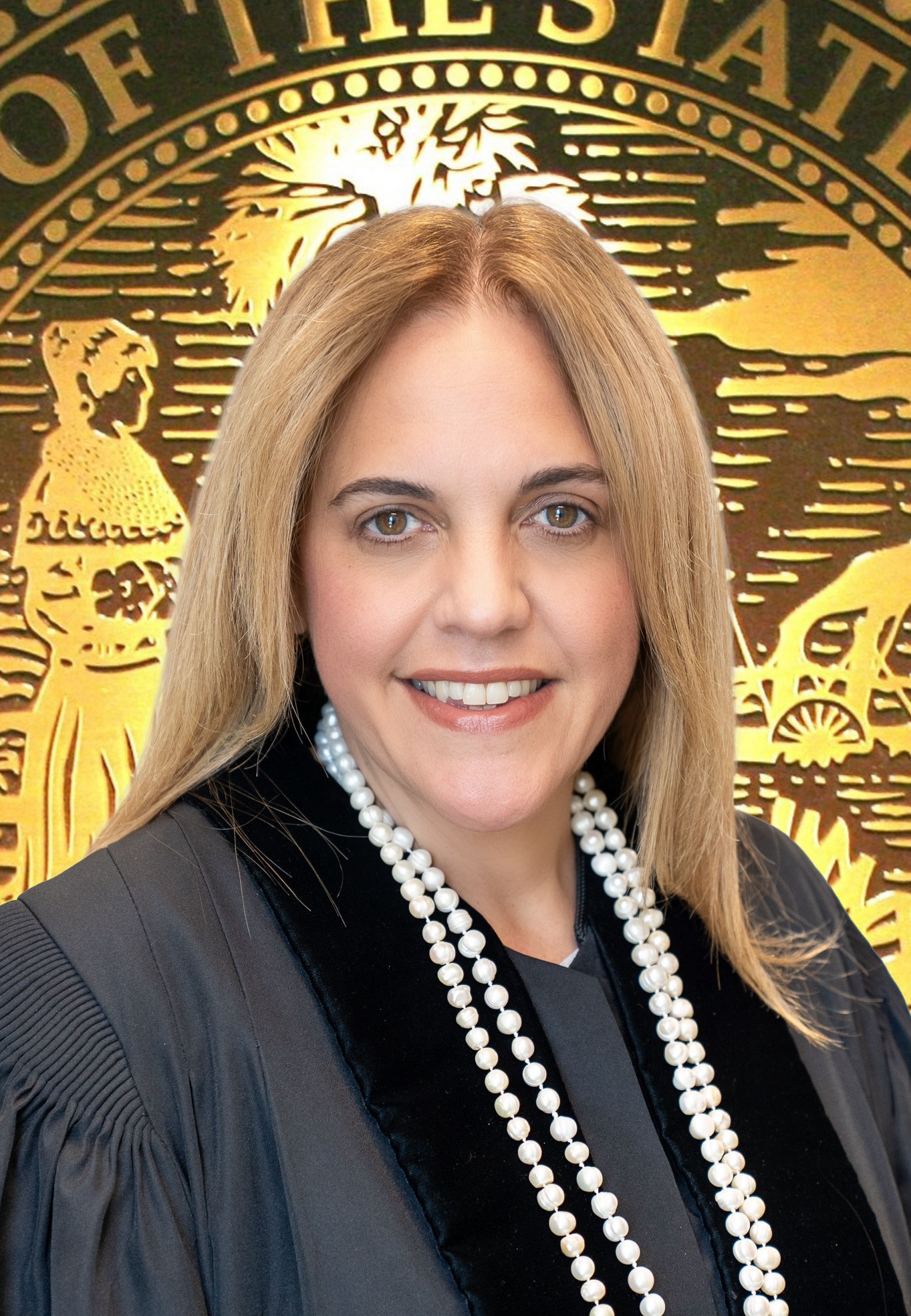
Judge Victoria del Pino
Individual Rules, Standing Orders & Policies

Communication
Chambers
Document Filing Requirements5 rules
***The Proposed Final Judgment should be submitted through Courtmap after you have received the approval email from the Bailiff.
On COURTMAP also include as supporting documents a Notice of Hearing.
All Proposed Orders are to be submitted through CourtMap with it's respective Motion and Cover Letter.
- Document
- Motion submission
Include
- •Proposed order
In order to cancel a Special set hearing you must file a withdrawal of the motion being heard or submit an agreed order.
As supporting documents, attach the motion and any responses with an e-file stamp.
Filing & Service rules
Electronic Filing Rules
Once the case is resolved, set it through CourtMap.
Once your case is resolved, you must set the case through COURTMAP.
Page 1 | UCD Calendar Information
E-file all supporting documents through the Florida E-Filing Portal and ensure they bear a filing stamp before submitting them through CourtMap.
Please be sure to e-file all supporting documents through the Florida E-filing Portal and have the filing stamp on them, before submitting through Courtmap.
Page 1 | UCD Calendar Information
For a special-set hearing or case-management conference, file the motion and hearing request with the Clerk through the Florida E-Filing Portal and add the division email to the courtesy-copy list.
On the FLORIDA E-FILING EPORTAL, file the Motion and a Request for Hearing, with the Clerk's Office. Add 11thFC38@jud11.flcourts.org to the courtesy copy email list.
Page 1 | SPECIAL SET HEARINGS AND CASE MANAGEMENT CONFERENCES
File the motion and any exhibits through the E-Filing Portal and include the division email in all filings.
On the E-FILING PORTAL, file the Motion with any exhibits. Include 11thFC38@jud11.flcourts.org in all filings.
Page 1 | Motion Calendar Information
File an emergency motion and hearing request through the Florida E-Filing Portal, then submit them to the Judge through CourtMap.
File Emergency Motion and Request for Hearing through the FLORIDA E-FILING PORTAL and then submit to the Judge via CourtMap into the Emergency Motion.
Page 1 | EMERGENCIES
Sign up for CourtMap to submit emergency motions and proposed orders to the assigned Judge.
Sign up for COURTMAP at https://www.jud11.flcourts.org/Programs-and-Services/Online-Services/ for submitting emergency motions and proposed orders to your assigned Judge
Page 1
The party who added a motion to the calendar must electronically file a cancellation notice and remove the motion from CourtMap.
The party that added the motion to the motion calendar must e-file a notice of cancelation and must take off the motion calendar in courtmap.
Page 1 | Cancelations
Attorneys and self-represented litigants must sign up for the Florida Courts E-Filing Portal to file pleadings or motions with the Clerk.
ALL ATTORNEYS AND SELF REPRESENTED LITIGANTS MUST SIGN UP FOR AN ACCOUNT AT FLORIDA COURTS E-FILING PORTAL AT: https://www.myflcourtaccess.com/ for filing of pleadings or motions with the clerk of Court.
Page 1
If supporting documents are not correctly filed and viewable through the Florida E-Filing Portal when the proposed final judgment is submitted for the UCD calendar, the filer must reset the case for a new date and complete the procedures correctly.
If supporting documents are not filed and viewed correctly through the Florida E-filing Portal upon submittal of the Proposed Final Judgment for the day of the UCD calendar, then it is your responsibility to reset the case for a new date and make sure that all the procedures are done correctly.
Page 1 | UCD Calendar Information
Filing Timing and Cure Windows
Notices that are not timely filed will be rejected.
PLEASE BE ADVISED THAT ALL NOTICES NOT FILED IN A TIMELY MANNER WILL BE REJECTED.
Page 1 | Motion Calendar Information
If a matter resolves after a hearing is scheduled, the requesting party must immediately file a cancellation notice with the Clerk or through the E-Portal and call chambers to remove it from the calendar.
If you reach a resolution after a hearing has been scheduled, the party that requested the hearing must, IMMEDIATELY UPON REACHING A RESOLUTION, file a Notice of Cancellation with the Clerk or thru E-Portal AND CALL CHAMBERS to remove the matter from calendar.
Page 1 | IMPORTANT
File the Notice of Hearing with the Clerk at least five business days before the hearing, excluding the hearing day.
The notice of hearing must be filed with the Clerk at least 5 business days prior to the hearing, not including the day of the hearing.
Page 1 | Motion Calendar Information
This should be submitted by the Friday prior to the Uncontested Calendar.
This should be submitted by the Friday prior to the Uncontested Calendar.
Page 1 | UCD Calendar Information
Service and Proof of Service Rules
E-serve the opposing side with the filing through the E-Filing Portal.
On the E-FILING PORTAL, E-SERVE the opposing side with your filing.
Page 1 | Motion Calendar Information
If the opposing party is not registered for CourtMap, generate a notice with an appropriate certificate of service and mail it to that party.
IF THE OPPOSING PARTY IS NOT REGISTERED FOR COURTMAP YOU MUST GENERATE YOUR OWN NOTICE WITH AN APPROPRAITE CERTIFICATE OF SERVICE AND MAIL IT TO THE OPPOSING PARTY.
Page 1 | SPECIAL SET HEARINGS AND CASE MANAGEMENT CONFERENCES
Pre-Motion Conference Requirements
Do not notice a hearing until confirmation that it has been approved and set has been received.
PLEASE DO NOT NOTICE YOUR HEARINGS UNLESS YOU HAVE RECEIEVED THE CONFIRMATION THAT THE HEARING IS APPROVED AND SET.
Page 1 | SPECIAL SET HEARINGS AND CASE MANAGEMENT CONFERENCES
Coordinate the hearing date with the opposing party on CourtMap and set the hearing in the Motion Calendar slot once the date is agreed upon.
On COURTMAP, coordinate with opposing party and select the date to have the motion heard.Once a date is agreed upon you may set the hearing using in the Motion Calendar slot.
Page 1 | Motion Calendar Information
The motion calendar is held for non-evidentiary matters on Mondays at 10:00 a.m. and Wednesdays at 9:30 a.m.
Motion Calendar will be held for NON-EVIDENTIARY matters every Monday @ 10:00 AM and Wednesday @ 9:30 AM.
Page 1 | Motion Calendar Information
Chambers Communication Rules
For an emergency motion filed at or after 5 p.m., on a weekend, or during a Court holiday, the filer must contact the emergency judge on duty.
If an emergency motion is being filed on or after 5pm, on a weekend, or during Court Holiday, the party filing the emergency motion MUST contact the emergency judge on duty.
Page 1 | EMERGENCIES
To schedule a special-set hearing, email the division and copy all parties on every email to the Court.
To schedule a Special set hearing please email us at our division email and copy all parties in all emails to the Court: 11thfc38@jud11.flcourts.org
Page 1
After filing, email the Division a copy of the motion and copy opposing counsel and involved parties; coordinate an available date with the parties and notify the Division of the agreed date.
Once these documents are filed, please email the Division at 11thfc38@jud11.flcourts.org copy opposing Cousel and any parties involved on the case with a copy of the filed motion and we will send you available dates, once the JA sends available dates then coordinate one of the dates with the parties and then advise the Division which date the parties have agreed on.
Page 1 | SPECIAL SET HEARINGS AND CASE MANAGEMENT CONFERENCES
Request a case management conference date and time by emailing the division.
Please email the division at 11thfc38@jud11.flcourts.org to request a CMC date and time.
Page 1 | Case Management Conference
Request NJT dates by emailing the division.
Please email the division 11thfc38@jud11.flcourts.org to request NJT dates.
Page 1 | Additional Instructions